Device Hub
Proofsheet Device Hub
The Device Hub is the proofsheet command and Proofsheet.app on the Mac your phones connect to. It finds the phones, streams their screens, hands each one to one agent or run at a time, and records every run. Its dashboard is at http://127.0.0.1:8765: click the Proofsheet icon in the menu bar, then Open Proofsheet (⌘O).
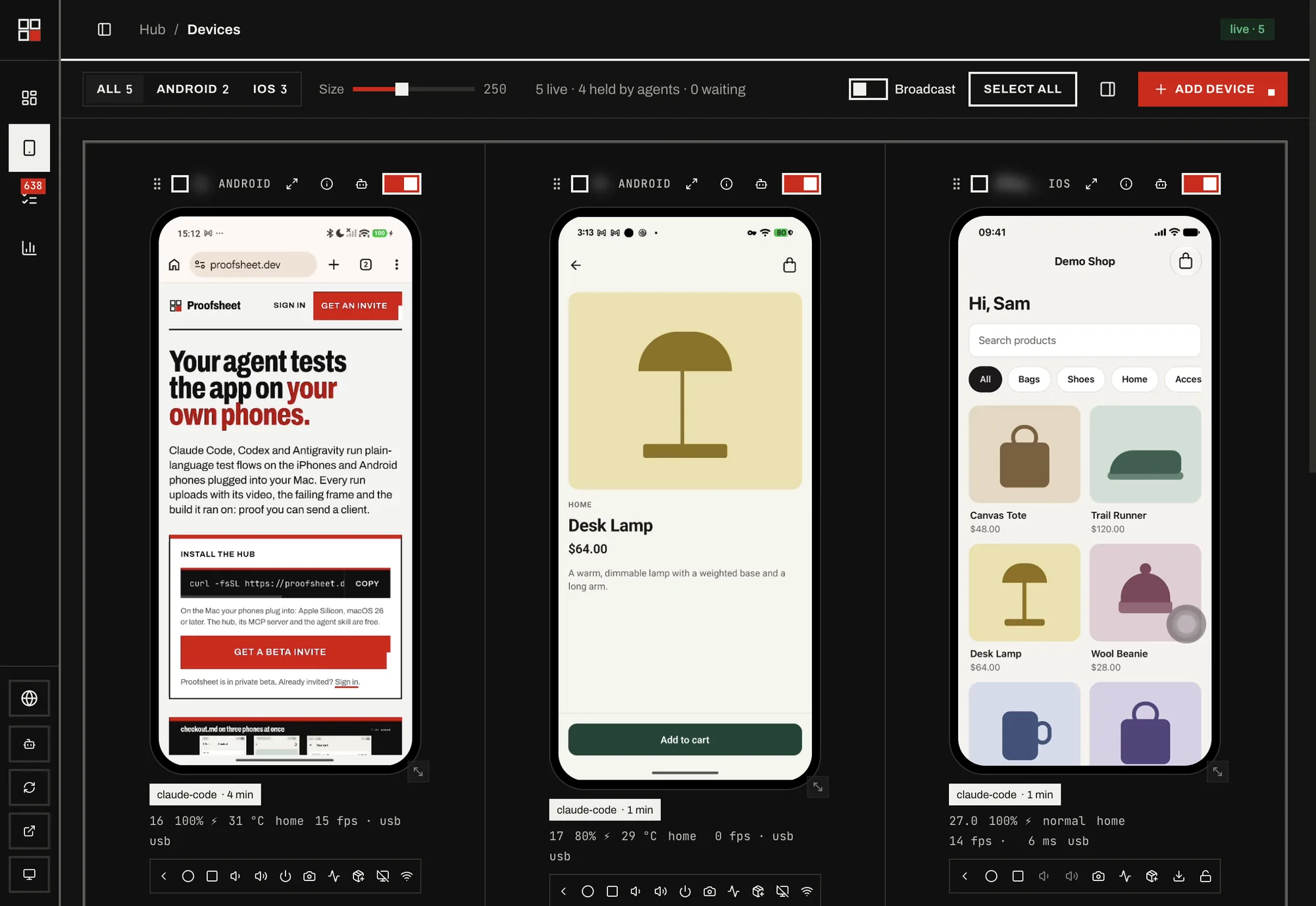
Add a phone
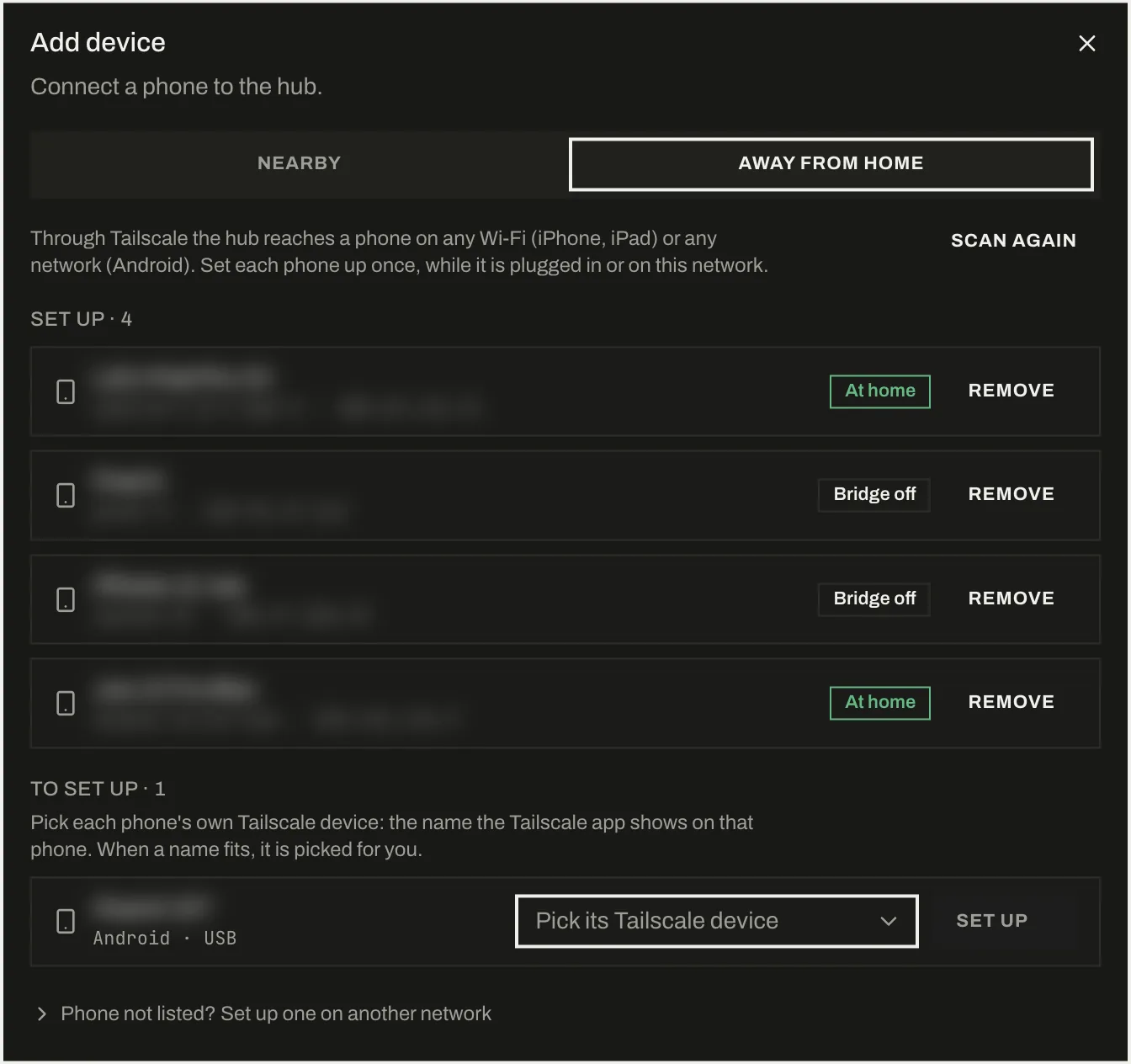
Open Devices, then Add device. The Nearby tab lists phones on USB and on the same Wi-Fi; Away from home sets phones up for Tailscale.
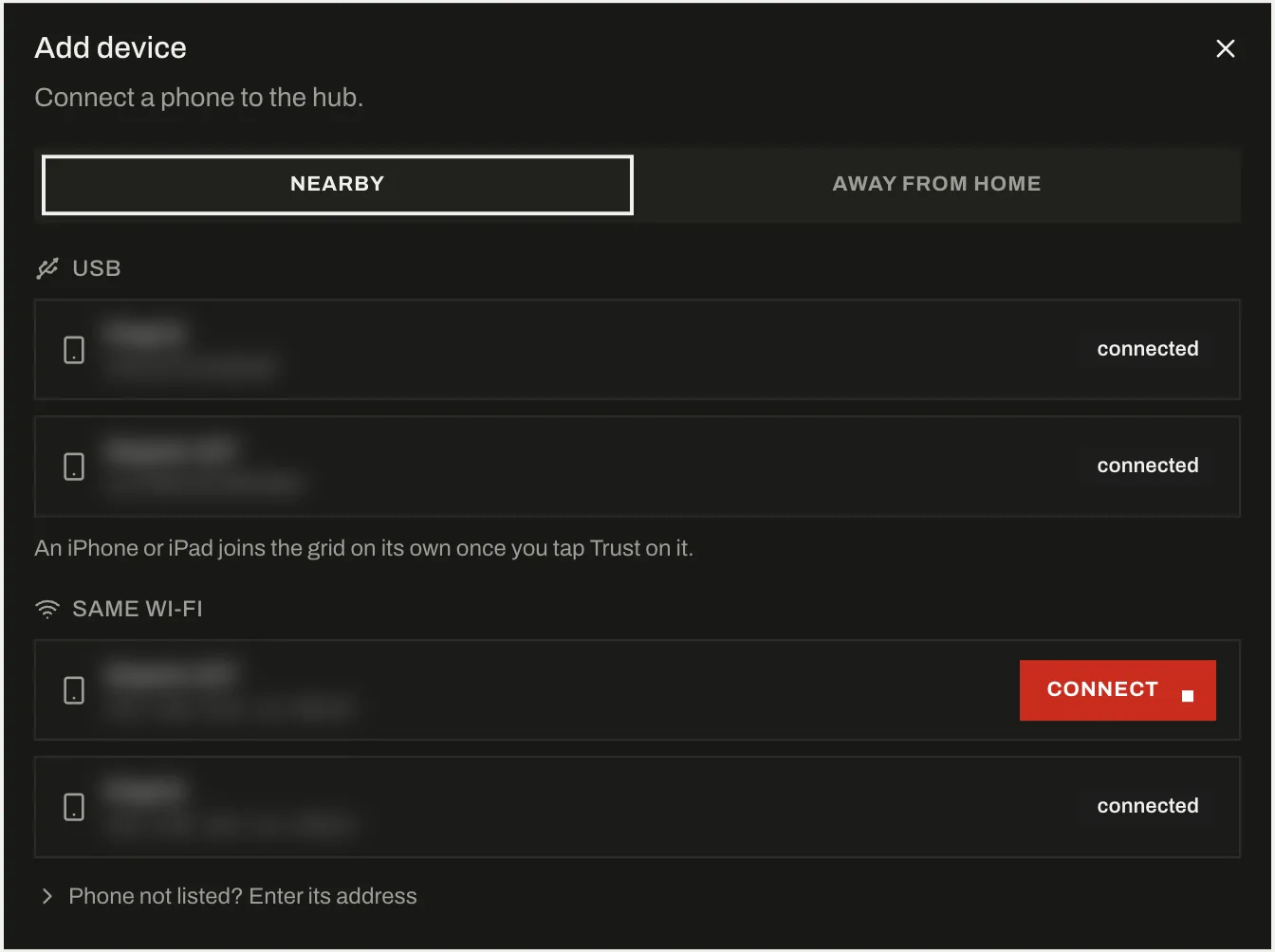
By USB
- Android: turn on Developer options and USB debugging, plug the phone in and allow the Mac when it asks. It joins the wall on its own.
- iPhone and iPad: plug it in and tap Trust. The first time, run
proofsheet ios setup(iPhone setup).
On the same Wi-Fi
- Android: on the phone, Developer options > Wireless debugging > on. It shows under Same Wi-Fi. To pair it the first time, tap Pair device with pairing code on the phone, keep that screen open, then Pair in Add device and type the six-digit code. A paired phone only needs Connect.
- Not listed? Open Phone not listed and type its address, for example
192.168.1.20:5555, with the pairing code if it has never been paired. - iPhone and iPad: once paired by USB, they also join over the same Wi-Fi. Off USB, the hub streams the screen and sound through its PS Streaming app, which it installs the first time you watch the phone off USB.
Away from home, through Tailscale
A phone set up once can leave the Mac's network and stay on the wall. The hub's away bridge carries it through Tailscale, and agents and runs use it like any other phone.
- Install Tailscale on the Mac and on the phone, signed in to the same tailnet.
- An iPhone or iPad needs iOS 17.4 or later and Wi-Fi: any Wi-Fi works, a café, a hotel or a phone's hotspot, but not cellular alone. An Android phone works on any network, cellular too.
- With the phone on USB or on the Mac's Wi-Fi, open Add device > Away from home, pick the phone's own Tailscale device (the name the Tailscale app shows on that phone; it is picked for you when the name fits), then Set up.
- An Android phone that was never on the Mac's network: open Phone not listed? Set up one on another network, pick its Tailscale device, and type the pairing code and both ports from Wireless debugging > Pair device with pairing code. An iPhone has to be on USB or the Mac's network once.
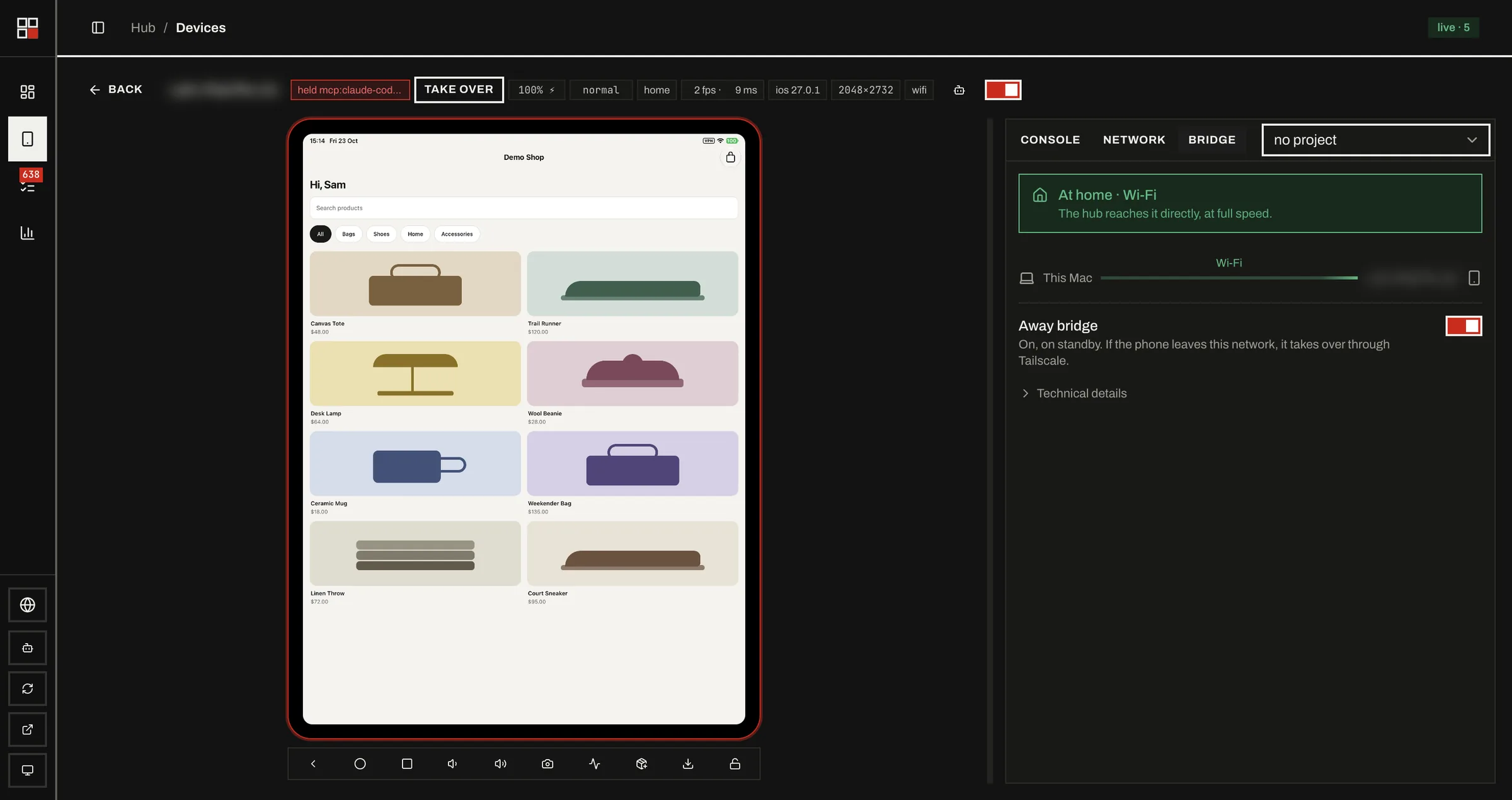
Each tile shows where the phone is: home when the hub reaches it directly, bridged with the round trip in milliseconds when it is away, and relay when a Tailscale server carries the traffic, which is slower. A phone moves home, away and home again on its own. The phone's Bridge tab and the menu bar turn its away bridge off and on, and Retry now tries again at once. The Mac stays awake while a phone is away.
Watch and drive
| Phone and link | Live screen |
|---|---|
| Android, by USB or Wi-Fi | H.264, up to the phone's resolution at 60 fps |
| iPhone or iPad by USB | H.264 encoded on the Mac, up to the phone's resolution at 60 fps |
| iPhone or iPad over Wi-Fi | H.264 from the PS Streaming app, up to 60 fps, with sound |
Those are the most for the phone you open. Quality steps down when the link slows and back up when it recovers, and wall tiles stream lighter so many phones stay smooth. Under each tile, the frame rate is what your browser draws, then usb or the round trip to the phone.
- Click to tap, drag to swipe, scroll with the mouse wheel or trackpad, right-click for a long press.
- Keys: Back, Home, Recents, volume and power on Android; Home, App Switcher, volume and lock on iPhone. Screenshot saves a PNG. A locked iPhone unlocks with its saved passcode (
proofsheet passcode set). - Broadcast: turn it on in the wall's bar, tick the phones, and each tap goes to all of them.
- Running apps lists each app's CPU and memory, and closes any of them.
Install a build
Drop an .ipa, .apk or .aab on a phone, or use Install app in its key bar. The toast shows the upload, then each step. An .aab goes through bundletool.
An IPA whose profile does not list the phone, such as an App Store or TestFlight export or another team's ad hoc build, is re-signed for it first, as Sideloadly does:
- When your Xcode account is in the build's team, it is re-signed by that team with every entitlement kept, and the phone is added to the team if it is missing.
- Otherwise the hub's team signs it, with push, app groups, iCloud and universal links off. If the App Store or TestFlight version is already on the phone, the build installs beside it as
<bundle id>.proofsheet, so you can test both. - An encrypted download from the App Store cannot be installed.
The hub does not install on a phone an agent holds.
Agents and people
- Each phone serves one agent or run at a time; others queue. A tile shows who holds it, for how long, and how many wait.
- Take over hands the phone to you. The run on it stops, so the hub asks first.
- Manual keeps agents and runs off a phone you test by hand. Its switch turns a phone off for everyone.
Logs and API calls
The Console tab merges the logs of every phone, color-coded per phone, and filters by level, app or a regular expression. The Network tab lists the API calls your app reports: add one interceptor to its HTTP client in debug builds. No proxy and no certificate, and it works with certificate pinning.
The menu bar
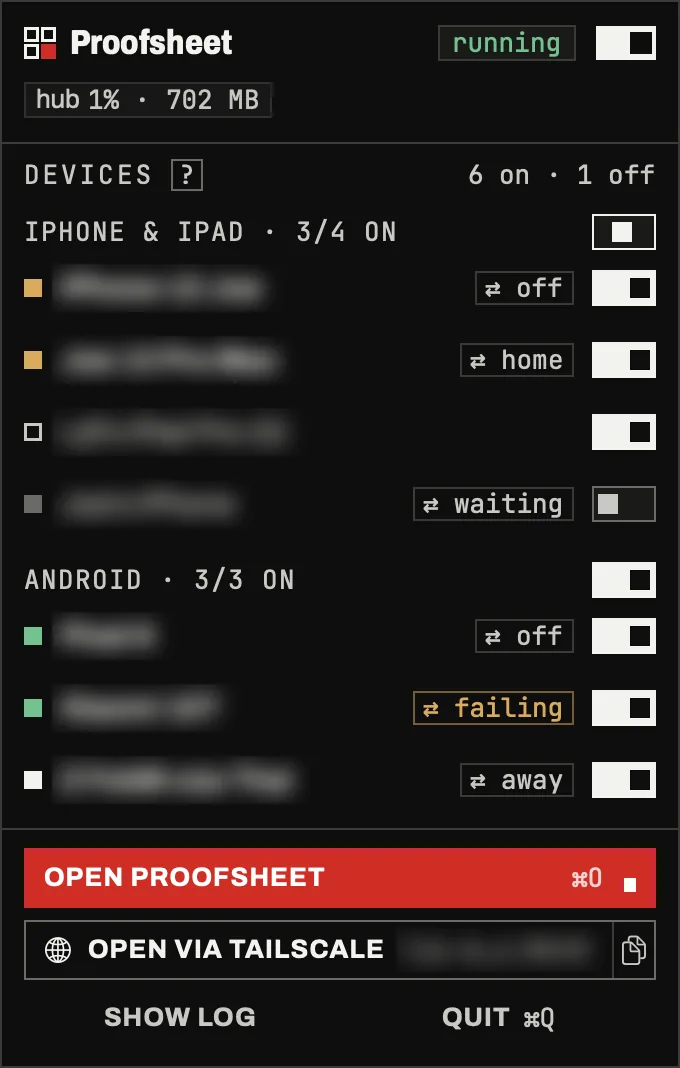
Proofsheet.app keeps the hub running and starts at login. Its panel shows:
- The hub's state with an on and off switch, and its CPU and memory.
- Every phone, grouped as iPhone & iPad and Android, with a switch per phone and per group. A dot shows free, held, not ready or off; hover for the connection, iOS or Android version and battery; click to open the phone in the dashboard.
- A bridge tag on each phone set up for Tailscale (home, away, waiting, failing or off) to start, stop or retry its away bridge.
- Open Proofsheet, Open via Tailscale with a copy button, Show log and Quit.
Open the dashboard from another device
To open it from another device on your tailnet, serve it once from the Mac:
tailscale serve --bg --https=8443 http://127.0.0.1:8765Then Open via Tailscale in the menu bar opens it, and its copy button copies the link.
Public URL. The dashboard's Public URL switch puts the hub on the internet through Tailscale Funnel. The hub has no login: anyone with the URL can control the phones. Over that URL the hub refuses installs, connecting phones, taking over, run reports and other risky actions, and only this Mac can turn it on or off.